How to Send and Use GIFs on Snapchat (Ultimate 2026 Guide)
If you have ever wanted to level up your Snaps with something more expressive than emojis or stickers, you need to know how to send and use GIFs on Snapchat. They allow you react, joke, or tell stories in motion, turning every photo, chat, or selfie into something fun and alive.
GIPHY powers Snapchat GIFs, which means you get access to millions of short videos, from relatable memes to trending moments.
Whether you are reacting in chat, adding motion to a selfie, or sending a meme reply, GIFs make Snapchat conversations come alive.
What Are Snapchat GIFs and How Do They Work?
Snapchat GIFs are short, looping animations you can add to your photos, videos, or chats to make your relationship more expressive. These animations come directly from GIPHY, the world’s biggest GIF library that powers most social platforms.
When you add an animated sticker, you are actually using a GIPHY-sourced clip that’s been optimized to load quickly. It’s easy to mix up GIFs, Stickers, and Bitmoji, but they are not the same. Stickers are static images or Snapchat-designed graphics. Bitmoji are your personalized cartoon avatars.
GIFs, on the other hand, are short moving visuals pulled from GIPHY that you can search by typing a mood, reaction, or phrase. Snapchat takes care of the conversion and scaling automatically, so you don’t have to worry about file kinds or constraints. The app supports GIFs in the .gif or .webp format.
Can You Send GIFs on Snapchat?
Absolutely! Snapchat makes it super easy to send GIFs in different ways, whether you are dropping them into a photo, sending them in a chat, or pulling one from your phone’s gallery. You can share them through your Snap camera, your keyboard, or even import your saved animations from the camera roll.
Snapchat supports this feature on both Android and iPhone, but the layout looks slightly different depending on your device. On iPhones, the GIF search is built into the Sticker tab and syncs perfectly with GIPHY’s trending feed. Android users can either search within Snapchat or use Gboard to attach an animated clip while chatting.
Since the 2026 app update, GIFs now load faster, appear in higher resolution, and include more diverse categories like trending memes, reactions, or even seasonal animations.
How to Add GIFs to Snapchat Snaps
Step-by-Step (Android & iOS)
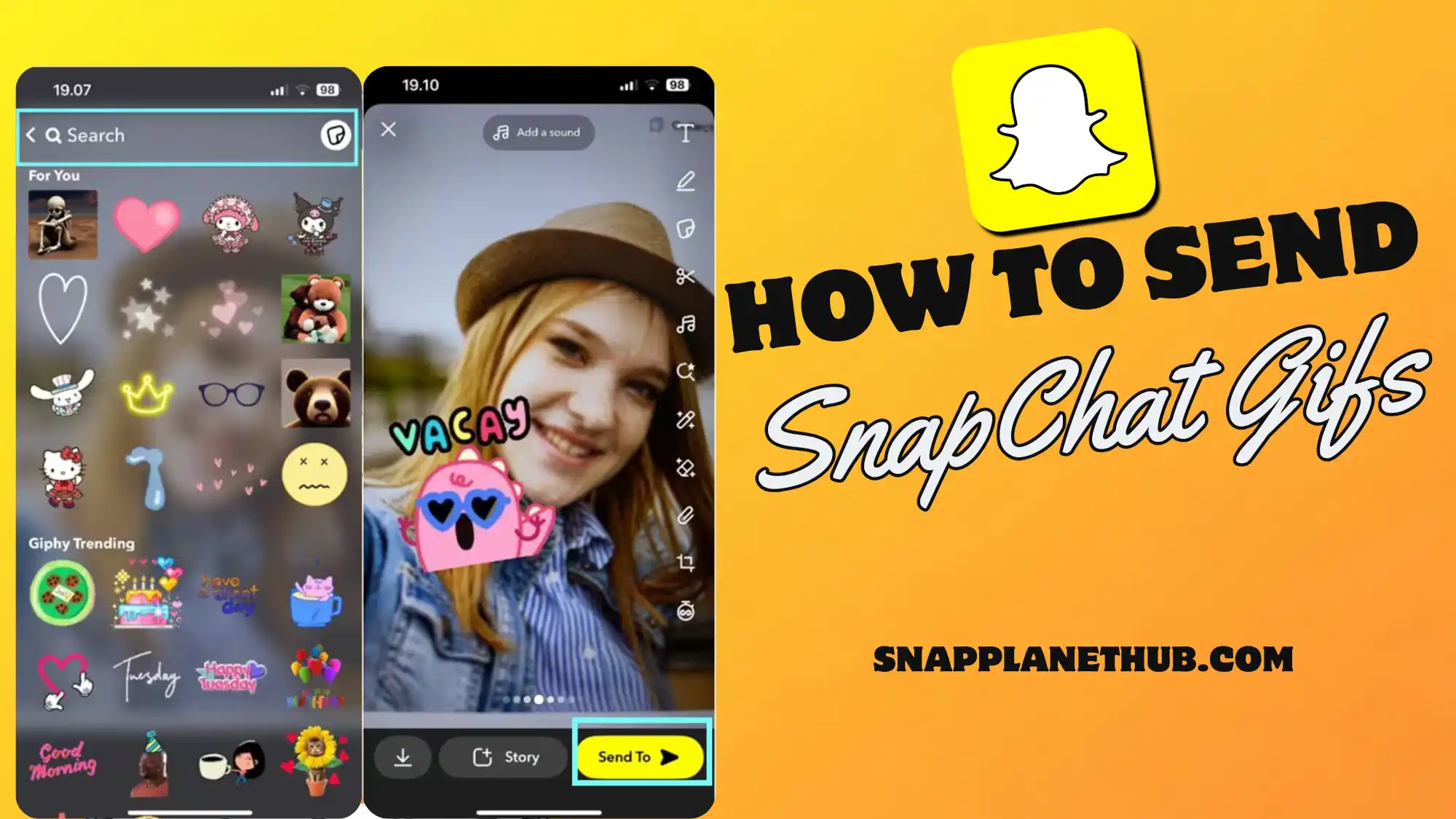
- Launch Snapchat, then take a picture or make a little video.
- Click the Sticker icon on the right side of your screen.
- In the search bar, type a keyword like “funny,” “reaction,” or “mood”.
- Pick the animation you like from the GIF section.
- Drag it onto your Snap and move it where you want.
- Pin it to a moving object by holding down on it, and Snapchat will track the motion automatically.
- Adjust the size or rotate it by using two fingers.
You can add as many as you want for an extra punch of expression or humor.
How to Send GIFs in Snapchat Messages
When you can use the ideal GIF at the correct time, Snapchat chats are much more enjoyable. There are two simple methods to include them in your talks, whether it’s a humorous response, a fleeting “same!” moment, or something dramatic.
Using the Built-In GIPHY Search
Snapchat has a built-in GIPHY search tool that allows you send animated reactions straight into your chat without needing a third-party keyboard. Below is how to do it step-by-step:
- Open Chat and pick the friend or group you want to message.
- Tap the sticker icon next to the text box.
- Choose the GIF section you will see trending and suggested animations.
- Use the search bar to find something that matches your vibe, like “mood,” “laugh,” or “omg.”
- Tap your chosen animation and Snapchat will instantly drop it into your chat window.
It will appear as a looping animation in your conversation, and your friends can view it without needing to open a Snap.
Using Your Keyboard (Gboard / Tenor / iOS Keyboard)
If you prefer sending animations straight from your phone’s keyboard, you can use Gboard (Android) or the iOS GIF keyboard to do it in seconds.
- Open a Snapchat Chat.
- Tap the text bar to bring up your keyboard.
- Switch to your GIF keyboard by tapping the emoji icon, then the “GIF” tab.
- Pick the animation that fits your reaction, and tapping to send it will paste directly into the message box.
You can also copy and paste animations manually. Just long-press a GIF on your keyboard, choose “Copy,” then paste it into your Snapchat message bar.
Do you want a quicker response? When you type an emoji (such as 😂 or 😎) into Gboard, it will automatically recommend animations that go with it. When you’re pressed for time and need a speedy response, this emoji-to-GIF search is a hidden gem.
Tip: If you ever see a new feature like Time Sensitive on Snapchat pop up while sending GIFs, it just means your message will bypass Do Not Disturb, perfect for urgent or funny moments that can’t wait.
How to Upload or Send Your Own Custom GIFs on Snapchat
Want something more you than the usual GIPHY picks? You can create and send your own custom animations right inside Snapchat. This trick is great for creators or anyone who wants to stand out.
- Open your Camera Roll and pick a short clip you want to turn into a looping animation.
- Upload that clip to GIPHY’s GIF Maker or tools like HitPaw Video to GIF to convert it.
- Once your animation is ready, save it to your gallery.
- Go back to Snapchat → tap the Sticker icon → then hit the Camera Roll section.
- Select your custom creation and place it anywhere on your snap.
Once added, it will behave just like any other GIF, letting you resize, rotate, or even pin it to movement in your snap.
This is perfect for influencers or small brands who want to use their own visuals. Imagine sending a GIF of your logo, your face doing a reaction, or a short “thank you” animation to your audience. It’s personal and way more memorable.
How to Save or Download GIFs from Snapchat
A lot of users wonder if they can keep the fun animations they receive from friends. Snapchat doesn’t have a direct “Save GIF” button, but there are still ways to do it safely.
- Screen record: Use your phone’s built-in screen recorder for animations that play in chat or stories. Use your gallery editor to cut the clip afterward.
- Third-party saving tools: If you have received a GIF in a Snap or Chat, you can use apps that convert video snippets into short animations. Just make sure they don’t violate Snapchat’s privacy terms.
- Camera Roll saving: An animation supplied from your own gallery can be reused or re-uploaded at any time because it is already kept locally.
It’s also worth knowing that Snapchat respects copyright rules for all GIPHY content. You’re free to share animations in your chats and Snaps, but using them for commercial promotion without permission can be restricted.
If you are using animations to decorate your snaps, check out the Snapchat Planets Meaning feature too; it’s another creative element that makes the platform feel personal and interactive.
Snapchat GIFs Not Working? (Fixes for 2026)
Sometimes, the app glitches, and those fun little animations just stop showing up. If you have tried to send an animated clip but it won’t load, disappear midway, or freeze your chat, don’t stress, it’s usually easy to fix.
Common Problems
- GIFs not loading or showing up: A slow connection or an improperly refreshed GIPHY library could be the cause.
- GIPHY search not working: The sticker panel’s search box may display “No Results,” typically as a result of a sync problem.
- Keyboard GIFs disappearing: Your keyboard’s GIF option may vanish if permissions reset or if Snapchat is running in restricted mode.
- GIFs lagging on Android: This happens when background processes or old cache files slow down your phone.
Fixed:
1. Update Snapchat and Gboard
Make sure both apps are on their latest versions. Open Google Play or the App Store, search each one, and tap Update. This instantly solves most performance and integration bugs.
2. Check Permissions
Both Gboard and Snapchat require complete access to network data and storage. Navigate to App Settings → Permissions on your phone and make sure “Photos,” “Media,” and “Network” are turned on.
3. Clear Cache
If GIFs are taking a long time to load or are giving you the same results, go to Snapchat Settings → Clear Cache → Clear All. This restores fluid scrolling and refreshes the GIPHY sync.
Best Snapchat GIF Ideas for Different Moods
Finding the right animation can totally shift the vibe of your chat or story. Below are some ideas to match your mood:
- Funny GIFs for friends
- GIFs for chat reactions
- Romantic GIFs for your partner
- Trending GIF categories (2026)
- Seasonal or event GIFs
How to Use GIFs on Snapchat Stories
Stories are where GIFs shine because they let you turn a basic clip into something vibrant and shareable. You can see how to make yours stand out:
- Record or upload your snap.
- Tap the Sticker icon, then open the GIF tab.
- Add moving visuals that match your theme, like sparkles for selfies or glitch effects for aesthetic videos.
- You also combine short text captions with your chosen animation for a storytelling touch.
- Preview before posting to make sure everything connects naturally.
Adding animations to your story makes it way more engaging and gives it that dynamic, scroll-stopping energy that regular photos don’t. It’s also a great way to show your vibe without typing much.
If you have ever explored Snapchat’s Snap Planets feature, you will notice it has a similar energy.
How to Use Snapchat GIFs for Branding or Creators
If you create content, animations can help shape your online personality. Below is how to use them smartly:
- Use branded animations via GIPHY channels: Businesses can upload their own looping graphics on verified GIPHY profiles and use them inside Snapchat.
- Influencers boosting engagement: People that make snaps often employ personalized loops like “swipe up,” “tap here,” or “follow me” to get people’s attention.
- Custom stickers for small brands: If you design your own visuals, converting them into animated loops helps people recognize your vibe instantly.
FAQs
1. Should I send GIFs in group chats on Snapchat?
Yes, you can open a group chat, hit the sticker icon, and pick your animation.
2. How do I make my Bitmoji move like a GIF?
Use Bitmoji Stories or Friendmoji scenes; Snapchat turns them into short animated loops automatically.
3. Why do GIFs not always play automatically?
If you have data saving mode or low-power mode on, this will happen. To make playback smooth, turn those off.
4. Can I add a GIF as my profile picture?
People who make snaps often employ personalized loops like “swipe up,” “tap here,” or “follow me” to get people’s attention.
5. Are all GIFs free to use?
Yes, personal use is totally fine since Snapchat’s content library is powered by GIPHY, which provides royalty-free animations for chatting and sharing.
Conclusion
Animations make it a lot more fun to talk, snap, and share stories on Snapchat. They enable you say exactly what you want without typing a word, from delivering speedy reactions in communications to making creative tale revisions.
Try mixing stickers, text overlays, and loops to create your own signature snap style. And if you are still exploring cool features, check out our guides on Time-Sensitive on Snapchat and Snap Planets Meaning to understand how the platform keeps evolving.